
Email log
Email log
The email log records the history of messages received by configured email inboxes. It is available under System → Email log.
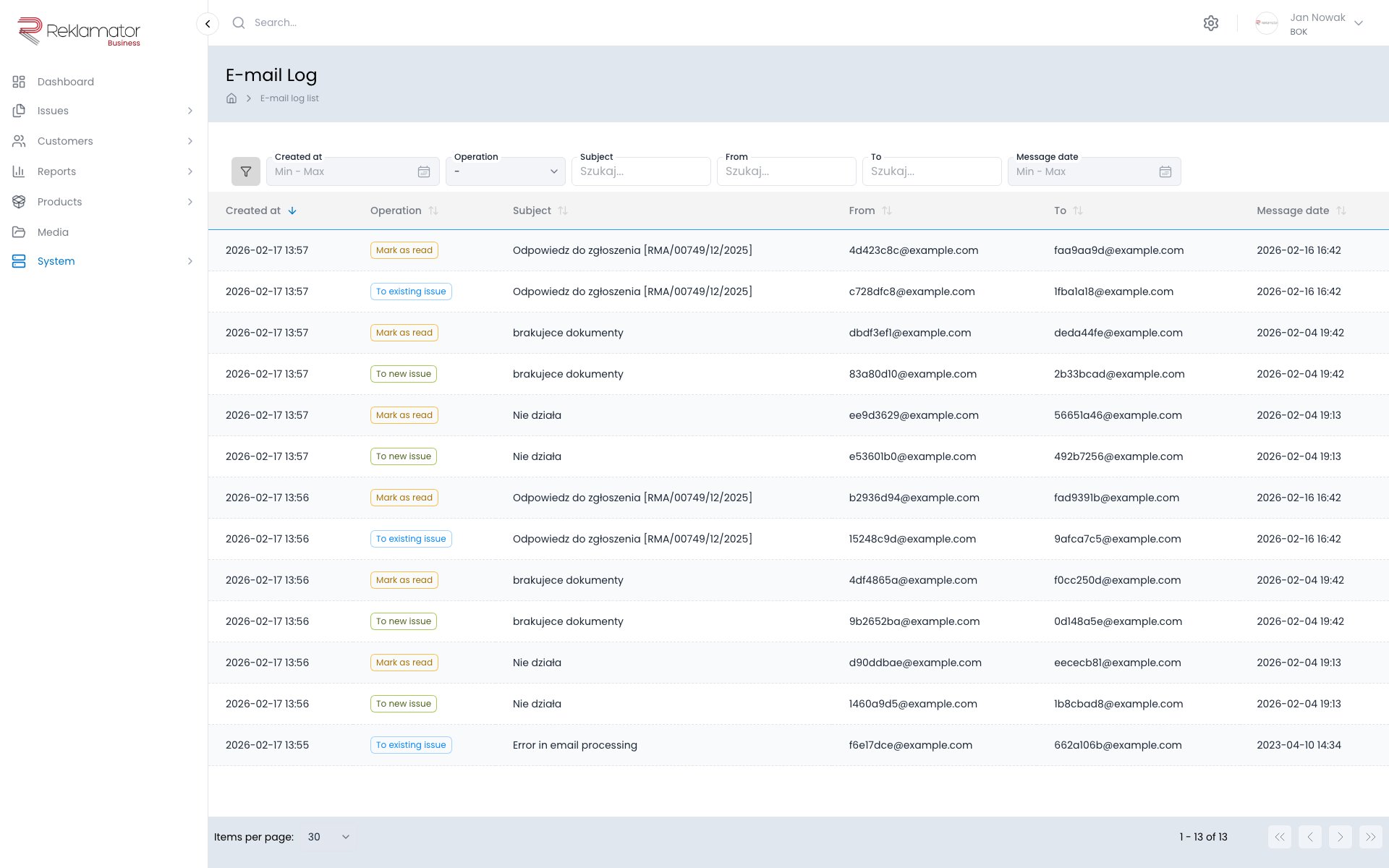
Columns and filters
| Column | Description | Filter |
|---|---|---|
| Created at | Date and time the message was processed by the system | Date range |
| Message date | Date and time the message was sent by the sender | Date range |
| Operation | Processing result | Operation list |
| Subject | Email subject | Text |
| From | Sender address | Text |
| To | Inbox address | Text |
Operations
Each message is processed and assigned one of the following operations:
| Operation | Description |
|---|---|
| Added to existing issue | The message was matched to an existing issue and attached as a message |
| New issue created | The message was unrecognised and the system created a new issue |
| Marked as read | The message was processed and marked as read in the inbox |
| Message deleted | The message was deleted from the inbox after processing |
| Message ignored | The message came from a sender on the ignored list |
| No action | The message was unrecognised but the inbox is not configured to create new issues |
FAQ
Where do I find the email log?
Under System → Email log. Access is granted by an administrator through group permissions.
Why didn't a message create an issue?
Check the Operation column — if it shows Message ignored, the sender is on the ignored list. If it shows No action, the inbox has new issue creation disabled for unrecognised messages.
How do I find which issue a message was added to?
The Added to existing issue operation means the message was attached to an issue — the entry details contain the linked issue.
Can I search for a message by sender or subject?
Yes. The Subject, From, and To columns support text filtering.
Does the email log include messages sent by the system?
No. The email log records only messages received by inboxes. The history of sent messages is available on the issue details page.