
Issue list
Issue list
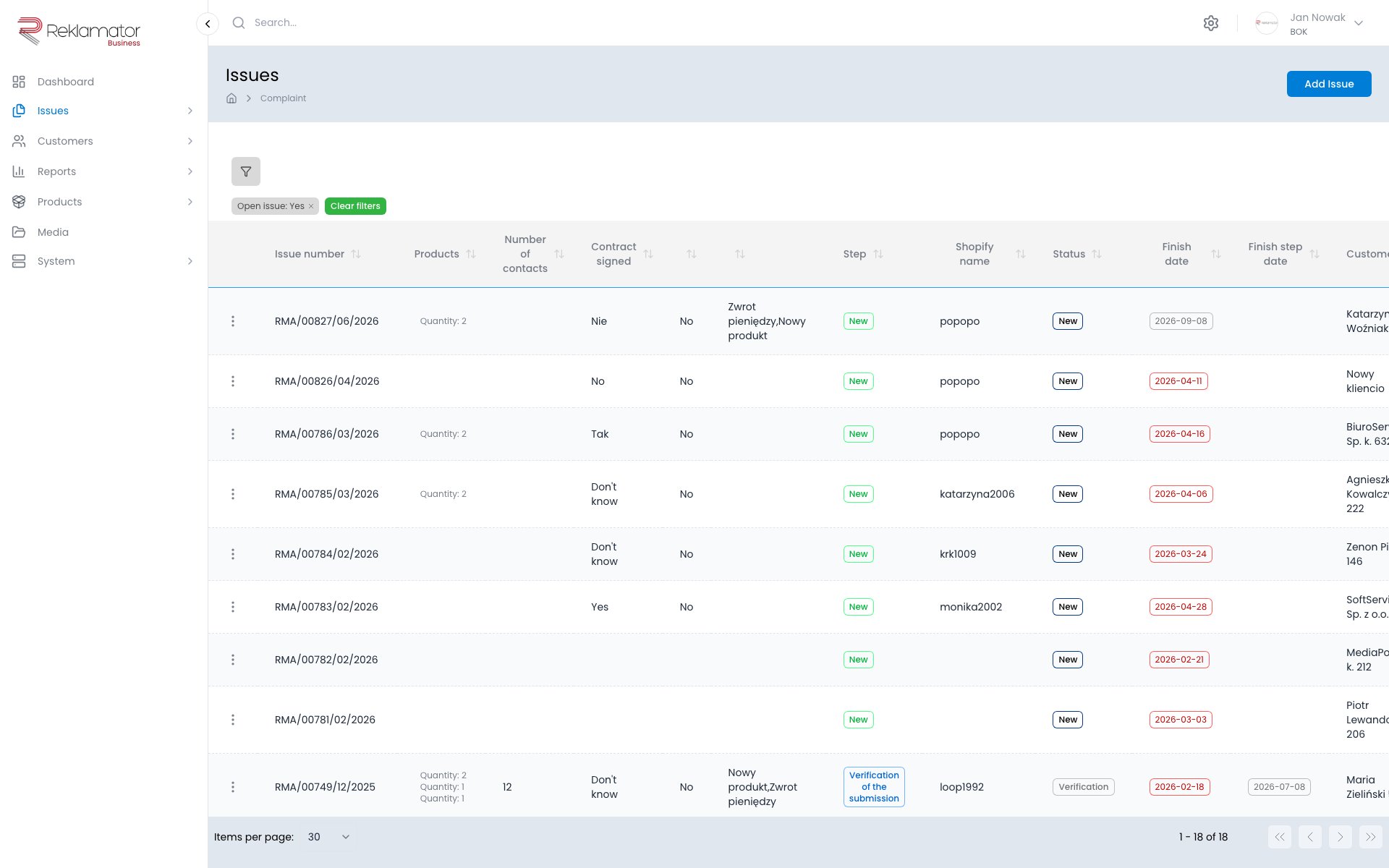
The issue list is accessible from the main menu under Issues. Each issue type has its own list.
Filtering
The filter panel is shown on the right side of the list. Available filters depend on the field configuration of the issue type — they may include status, workflow step, assigned user, creation date, category, or priority.
Active filters are displayed as tags above the list. Click × on a tag to remove a single filter.
Sorting and columns
Clicking a column header sorts the list ascending or descending by that value. Visible columns depend on the issue type configuration.
Opening an issue
Clicking a row in the list opens the issue details page.
Row actions menu
Each row has a context menu accessible by clicking the ⋮ icon at the end of the row. The menu provides:
- View details — opens the issue details page
- Edit — opens the issue edit form
- Delete — deletes the issue after confirmation
Keyboard shortcuts
| Key | Action |
|---|---|
| N | Create a new issue of this type |
| F | Show / hide the filter panel |
| R | Refresh the issue list |
| Z | First page |
| X | Previous page |
| C | Next page |
| V | Last page |
FAQ
Why can't I see all issues?
The list displays issues according to your account permissions and active filters. Check whether the filter panel has any narrowing criteria set.
Are filters remembered between visits?
Yes, the system remembers filter settings. When you return to the list, your previously set filters will be restored.
How do I quickly create a new issue?
Press the N key on your keyboard — you will be taken directly to the new issue form for the same issue type.
How do I delete an issue from the list?
Click the ⋮ icon at the end of the row and select Delete. The operation requires confirmation.
Can I export the issue list?
The export function is available in the Reports module, where you can configure and download an issue summary.
How do I find an issue by number?
Enter the issue number in the search field in the filter panel or in the global search available in the top bar of the application.