
Issue details
Issue details
The issue details page is the central view containing all information and actions available for a given issue.
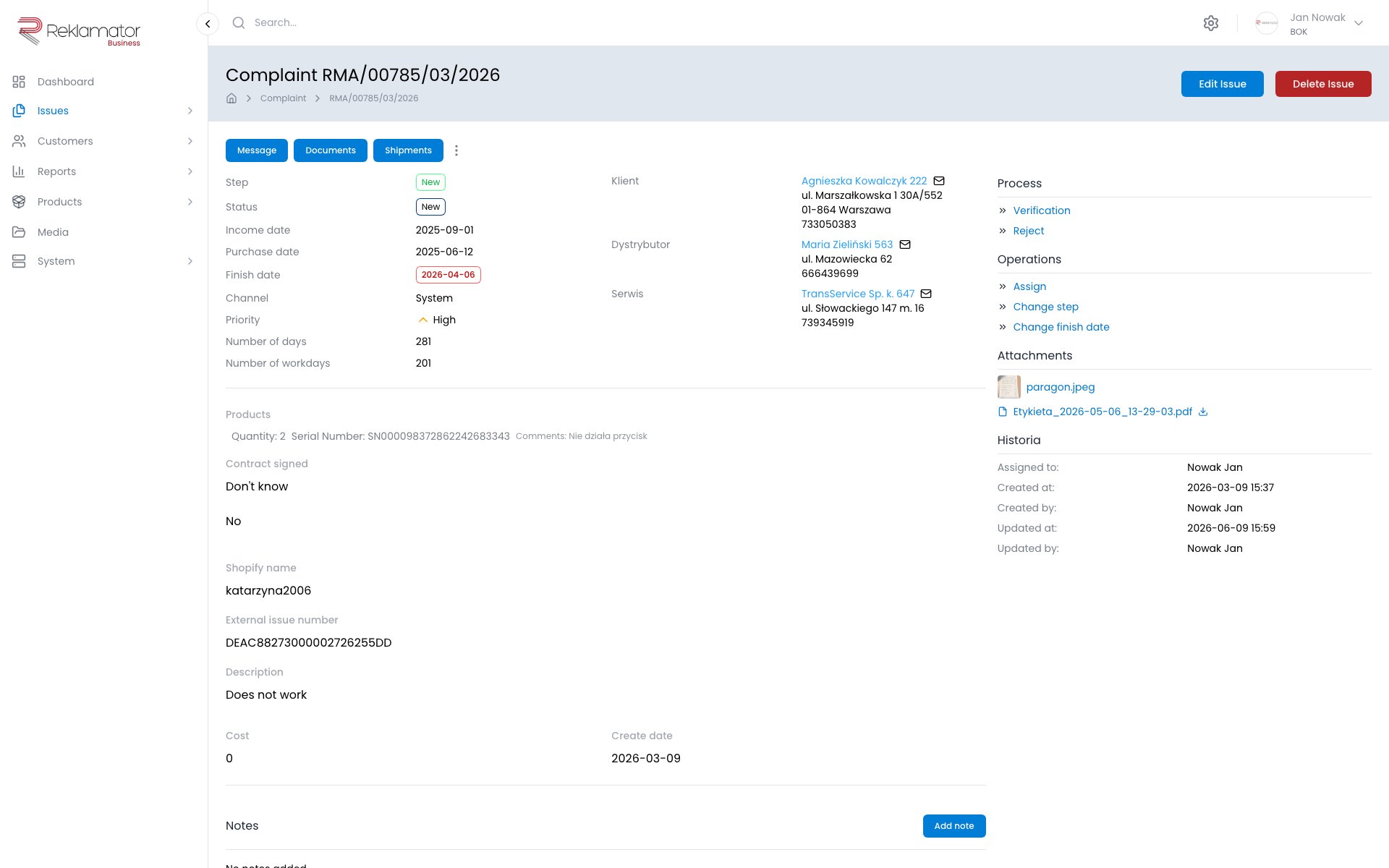
Header
The top of the page shows: issue number, type, current workflow step and status, creation and last modification dates, and the assigned user.
Issue sections
| Section | Contents |
|---|---|
| Basic data | Fields defined for the given issue type |
| Customer | Customer, distributor, service centre linked to the issue |
| Products | List of products in the issue |
| Attachments | Files and photos attached to the issue |
| Notes | Internal notes and messages |
| Shipments | Linked courier shipments |
| Links | Related issues |
| History | Full change history of the issue |
| Workflow history | Progress through workflow steps and statuses |
Actions
The top action bar provides operations on the issue:
- Edit issue — opens the basic data edit form
- Delete issue — deletes the issue after confirmation (requires appropriate permissions)
- Copy issue — creates a new issue with the same basic data
- Send message — opens the message form to send a message to the customer or team
- Generate documents — generates documents based on configured PDF templates
- Shipments — manage courier shipments linked to the issue
- History — go to the issue change history
Operations
The side panel provides quick contextual operations. For more on the workflow and step transitions, see Operations & workflow.
- Assign to me — assigns the issue to the logged-in user (shown when the issue is assigned to someone else)
- Assign — assigns the issue to a selected user
- Change step — moves the issue to a selected workflow step
- Change due date — updates the issue finish date
Keyboard shortcuts
| Key | Action |
|---|---|
| N | Add a note to the issue |
| E | Edit issue |
| D | Generate PDF documents |
| M | Send message |
| H | Show issue history |
FAQ
What is the difference between "History" and "Workflow history"?
Issue history shows all field value changes. Workflow history shows only transitions between steps and statuses — who moved the issue and when.
Can I delete an issue?
Deleting an issue requires the appropriate permissions. The option is available in the top action bar, if your role allows it. Deletion intentionally has no keyboard shortcut.
How do I copy an issue?
Use the Copy issue button in the top action bar. The system will create a new issue with the same basic data.
How do I send a message to a customer from an issue?
Click Send message in the action bar or press M. The sent message is recorded in the issue history.
How do I generate a document for an issue?
Click Generate documents in the action bar or press D, then select a PDF template. The generated document will be saved in the issue attachments.
How do I add a note to an issue?
Click the Add note button in the Notes section or press the N key. Notes are visible to all users with access to the issue.
How do I change the user assigned to an issue?
Use the Assign button in the side panel and select a user from the list. To assign the issue to yourself, use the Assign to me option.
How do I move an issue to a different workflow step?
Use the Change step button in the side panel, or use the transition buttons in the workflow section — these correspond to the configured transitions for the current step.
Can the issue type be changed after creation?
No. The issue type is assigned at creation and cannot be changed.