
Creating an issue
Creating an issue
A new issue can be created in three ways:
- clicking Add issue in the main menu under Issues
- clicking the Add button on the issue list for a given type
- pressing the N key on the issue list — the shortcut takes you directly to the new issue form for the same type
If multiple issue types are configured, the first step is selecting the appropriate type.
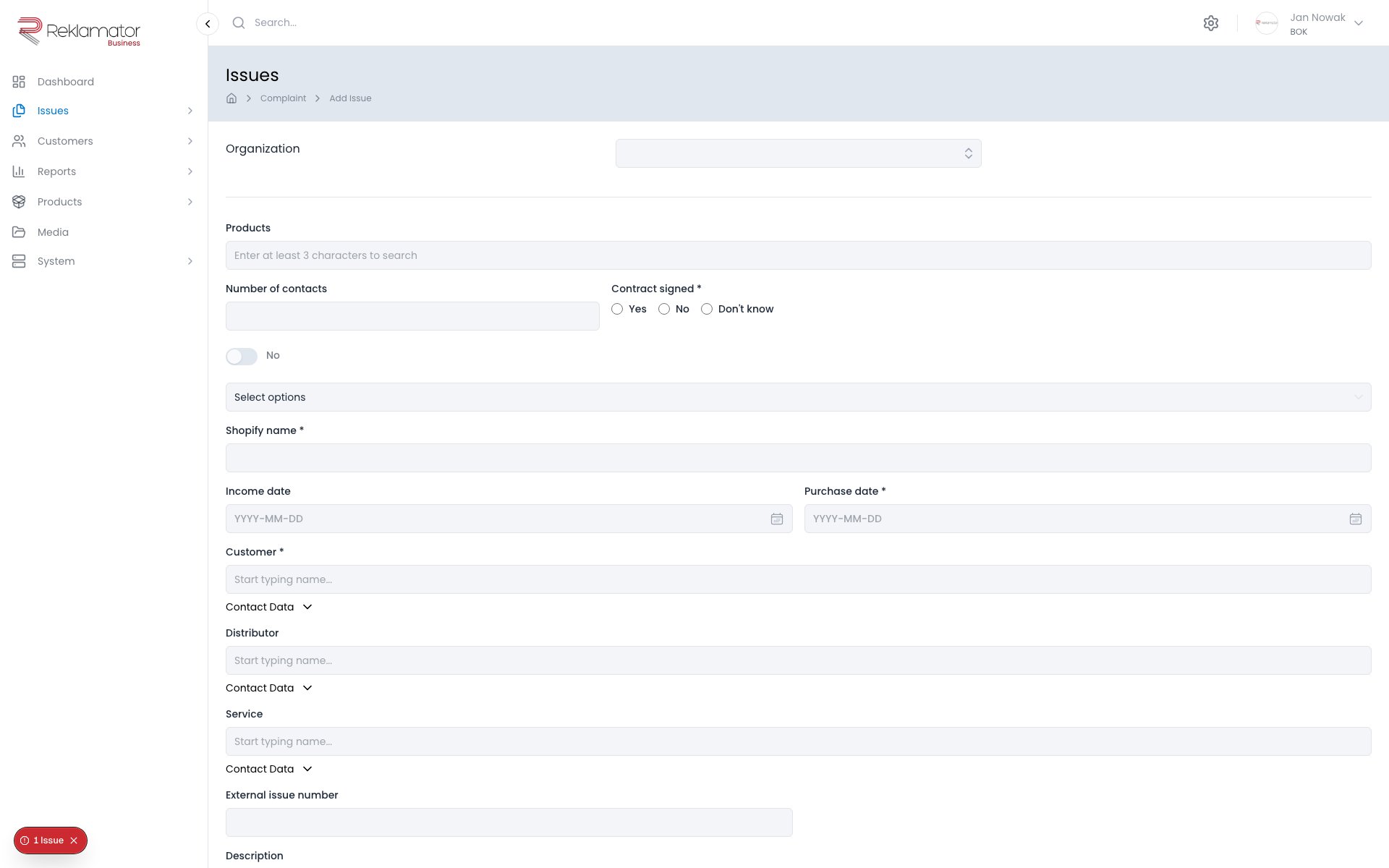
Issue form
The form contains fields defined for the given issue type. Fields marked with an asterisk (*) are required. Other fields can be filled in later from the issue details page.
Typical form fields:
- Customer — select a customer from the database or enter a new one
- Product — the product the issue relates to
- Category — issue category
- Description — issue description
- Attachments — files attached to the issue
After filling in the form, click Save to create the issue and open its details page.
FAQ
What is the quickest way to create a new issue?
From the issue list, press the N key — you will be taken directly to the new issue form for the same issue type.
Do I need to fill in all form fields?
Only fields marked with an asterisk (*) are required. The rest can be filled in later from the issue details page.
Where does the issue number come from?
The number is generated automatically by the system according to the numbering format configured for the given issue type.
Who is a newly created issue assigned to?
The issue is automatically assigned to the user who created it. The assignment can be changed later from the issue details page.
Can customers submit issues themselves?
Yes, if an administrator has configured a public issue form for the given type. See the Issue forms section for more.