
Dashboard & widgets
Dashboard
The dashboard is the home screen after logging in. It displays user-configured widgets with live issue data.
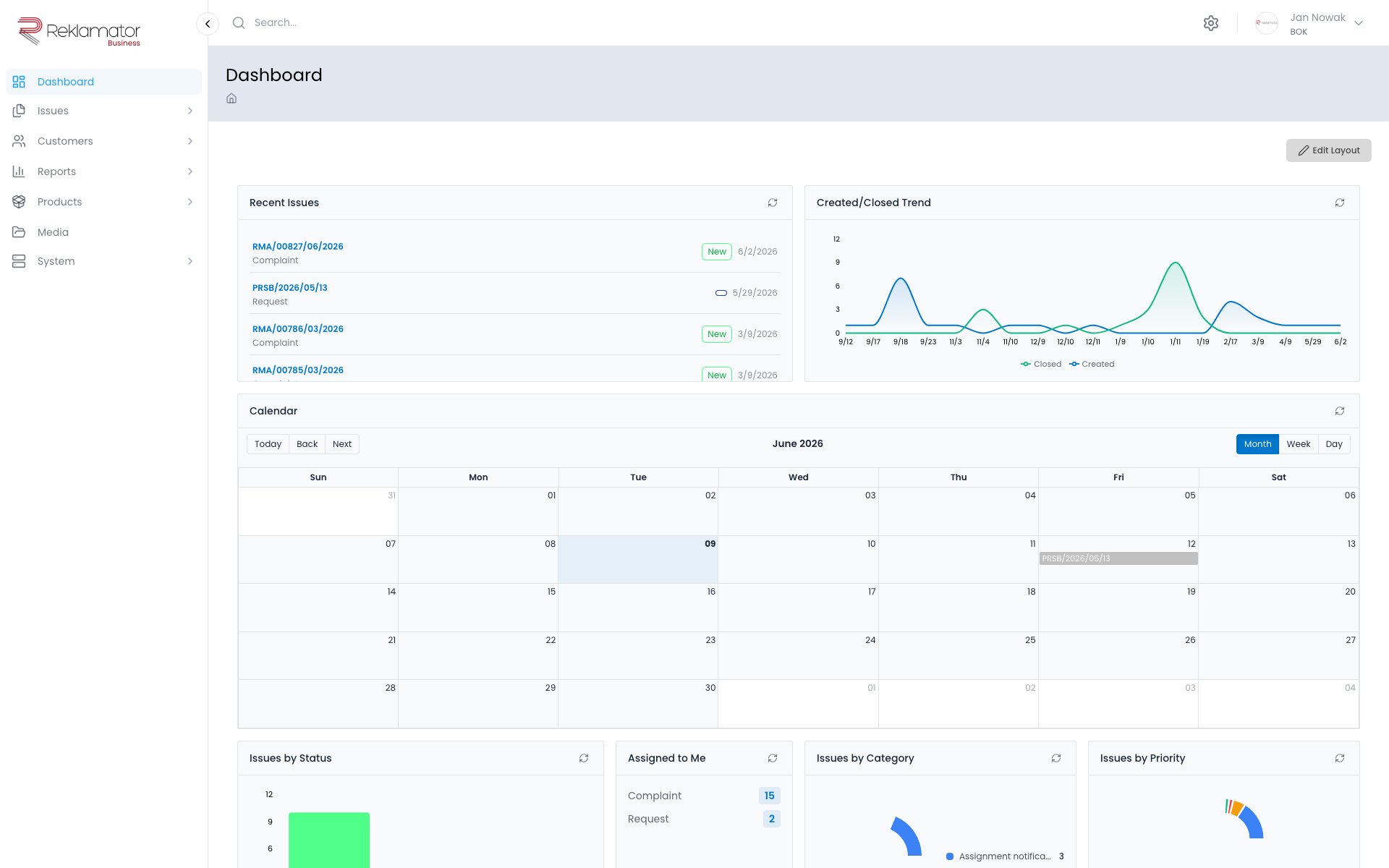
Available widgets
| Widget | Description |
|---|---|
| Recent issues | List of recently created or updated issues |
| Assigned to me | Issues assigned to the logged-in user |
| Issues by status | Distribution of issues by current status |
| Weekly trend | Chart of issue volume over the last 7 days |
| Issues by category | Distribution of issues by category |
| Issues by priority | Distribution of issues by priority |
Customising the layout
Click Edit layout in the top right corner of the dashboard to:
- add a new widget using the Add widget button
- resize a widget by dragging its edge
- rearrange widgets by drag and drop
When finished, click Save to keep the layout.
Widget properties
Each widget can have additional configuration settings:
- Recent issues - can be filtered by issue type, category, or priority
- Assigned to me - widget automatically displays issues assigned to the currently logged-in user
- Issues by status - can set a date range to display
- Weekly trend - can select a date range for analysis
- Issues by category - can filter by issue type
- Issues by priority - can filter by issue type
FAQ
Does each user have their own dashboard layout?
Yes. The dashboard layout is saved per user — one person changing the layout does not affect other users' views.
What widgets are available?
Available widgets are: Recent issues, Assigned to me, Issues by status, Weekly trend, Issues by category, and Issues by priority.
Can I add the same widget more than once?
This depends on the system configuration. By default each widget can be added once.
How do I restore the default layout?
Enter layout edit mode, remove all widgets, and add them again in the desired order.
Can I filter data in widgets?
Yes. Most widgets allow filtering data by various criteria such as issue type, category, priority, or date range.