
Business rules
Business rules
Business rules automate actions performed on issues based on defined conditions — without manual user intervention.
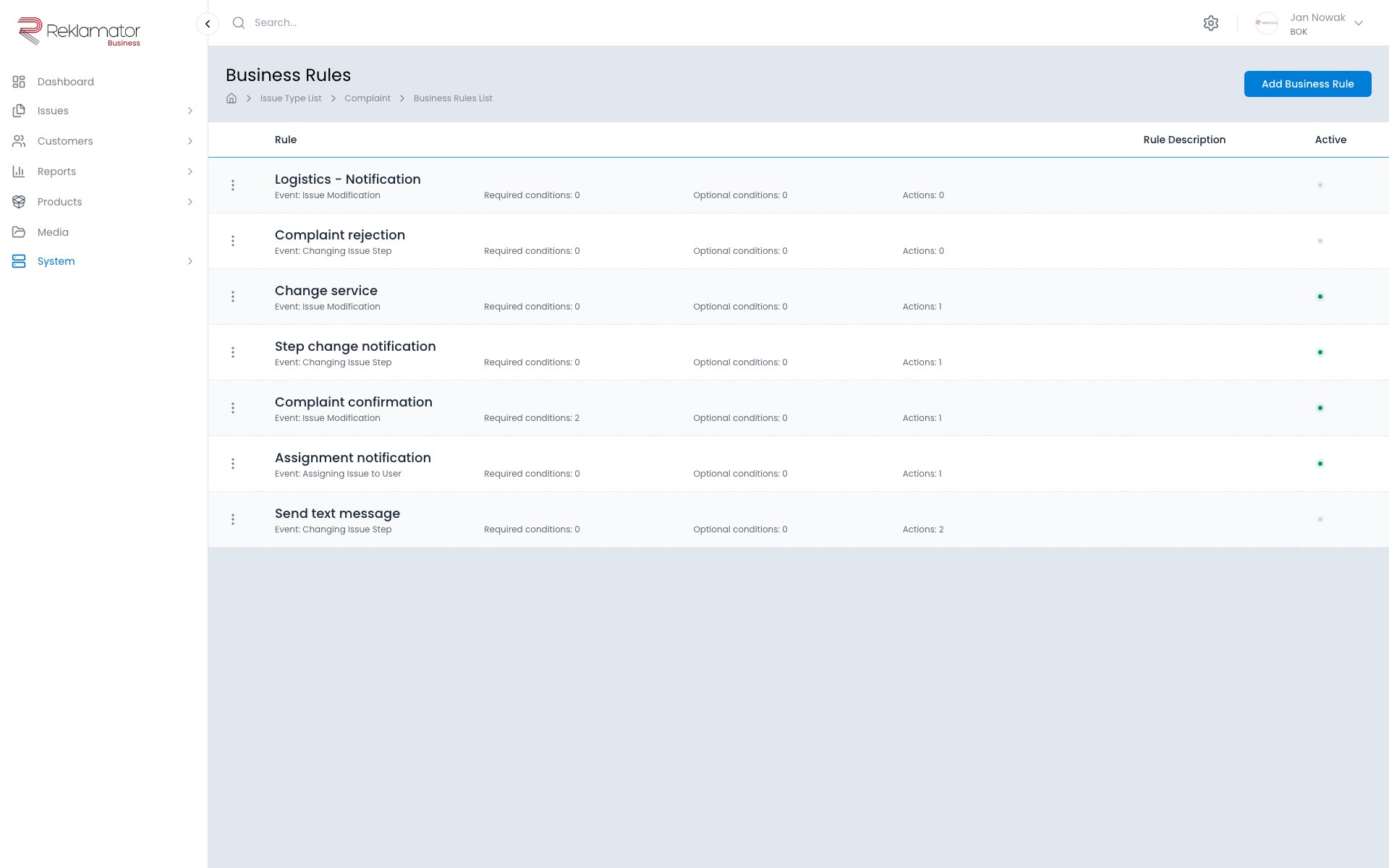
Configuration is available under Configuration → Issue types → [type] → Business rules.
Rule structure
Each rule has three configuration sections:
- General — triggering event, name, description, and active status
- Conditions — optional filtering criteria
- Actions — operations executed automatically when the conditions are met
Trigger events
A rule fires when the selected event occurs:
| Event | Description |
|---|---|
| Issue created | A new issue has been saved in the system |
| Issue updated | Any change was made to the issue |
| Issue assigned to user | The assignee of the issue changed |
| Issue step changed | The issue moved to a different step |
| Incoming email assigned to issue | An email was attached to the issue |
| Issue updated via remote form | A customer updated the issue through a remote form |
Conditions
Conditions restrict rule execution to issues that meet specific criteria. Two types are available:
- Required conditions — all defined conditions must be met simultaneously
- Optional conditions — it is enough for one condition to be met
Available condition types:
| Condition | Description |
|---|---|
| Process - operation executed | Checks which operation triggered the step change |
| Issue - distributor | Checks the distributor assigned to the issue |
| Issue - customer | Checks the customer assigned to the issue |
| Issue - service | Checks the service assigned to the issue |
| Issue - step | Checks the current step of the issue |
| Issue - status | Checks the current status of the issue |
| Issue - assigned user | Checks the assigned user |
| Issue - product | Checks the product linked to the issue |
| Issue - field value | Checks the value of a selected application field |
| Issue - issue source | Checks the origin of the issue (email, form, system) |
Each condition supports the operators: equals, does not equal, contains, does not contain.
Actions
Actions are executed automatically when the event occurs and the conditions are satisfied. Multiple actions can be added to a single rule.
| Action | Description |
|---|---|
| Send email | Sends an email using a selected template; PDF templates can be attached |
| Send SMS | Sends an SMS via a selected provider (SerwerSMS, SMSAPI) using a template |
| Assign issue to user | Sets the selected user as the assignee |
| Reset income date | Shifts the income date by a given number of days (resets the deadline counter) |
| Set customer | Sets the selected customer on the issue |
| Set distributor | Sets the selected distributor on the issue |
| Set service | Sets the selected service on the issue |
Message recipients (email and SMS)
For message-sending actions, the following recipient options are available:
- Assigned user — the currently assigned person
- Issue creator — the person who created the issue
- Distributor / Customer / Service — the contact linked to the issue
- Custom recipients only — addresses entered manually
FAQ
Do business rules execute in real time?
Yes. Rules trigger immediately when the triggering event occurs.
Can a rule be disabled without deleting it?
Yes. Each rule can be deactivated with the Active toggle — the rule is saved but not triggered.
What is the difference between required and optional conditions?
Required conditions work like logical AND — all must be met. Optional conditions work like logical OR — one is enough. Both types can be used together in the same rule.
Can multiple actions be added to one rule?
Yes. A single rule can have any number of actions, which are executed one after another.
Can a rule send an email with a PDF attachment?
Yes. In the Send email action you can select PDF templates that will be attached to the message.